Import an existing Kubernetes cluster
Deploying to your pre-existing cluster instead of provisioning a new one
When you deploy your application to your own cloud, the Encore platform can provision infrastructure for it in many different ways – including setting up a Kubernetes cluster.
If you already have a Kubernetes cluster, the Encore platform can deploy your Encore application into this pre-existing cluster. This is often useful if you want to integrate your Encore application with other parts of your system that are not built using Encore.
You can import a GKE cluster on GCP, or an EKS cluster on AWS.
Importing a GKE cluster
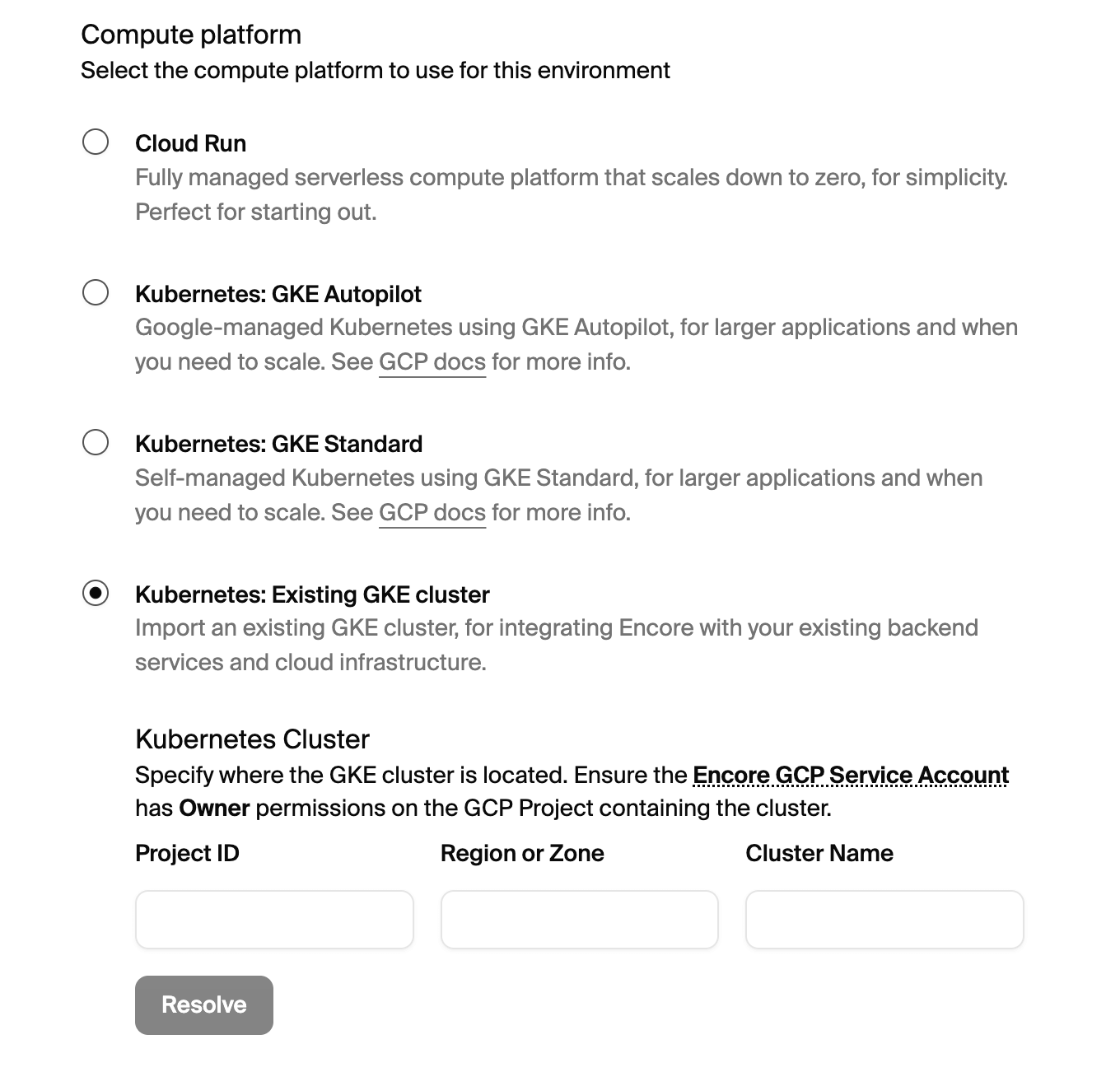
To import your cluster, go to Create Environment in the Encore platform dashboard, select Kubernetes: Existing GKE Cluster as the compute platform, and then specify your cluster's Project ID, Region, and Cluster Name.
When you deploy to this environment, the Encore platform will use your imported cluster as the compute instance.
Importing an EKS cluster
Requirements
The EKS cluster you import must:
- Be active, and in the AWS account and region of the environment.
- Use IPv4 for its pods and services. IPv6 clusters can't be imported.
- Have its API server endpoint publicly accessible. The Encore platform talks to the Kubernetes API from outside your VPC. If that public endpoint uses a CIDR allow list (
publicAccessCidrs), the list must allow Encore's control plane to reach the API. An allow list limited to office or CI addresses causes Resolve or deploy to fail. - Allow the Encore IAM role to manage access to it. Encore needs
eks:UpdateClusterConfig,eks:CreateAccessEntryandeks:AssociateAccessPolicyon the cluster, to let its role in (see Cluster access).
Importing the cluster
- Navigate to Create Environment in the Encore platform dashboard
- Select the AWS cloud provider
- Pick the
AWS Regionyour cluster runs in - In the Compute section, choose Kubernetes: Existing EKS cluster
- Enter the name of your EKS cluster
- Click the
Resolvebutton to validate it
Once it's resolved, you can create the environment. When you deploy to it, the Encore platform deploys your application into the cluster in a namespace of its own.
Where your services run
Your services run on the compute the cluster already has: its first managed node group, a node pool of Encore's own on an EKS Auto Mode cluster, or otherwise a Fargate profile that Encore creates for the environment's namespace. AWS accepts only private subnets for a Fargate profile: subnets with no direct route to an internet gateway. A cluster with only public subnets cannot use this fallback. See EKS compute for how each of them works, and Fargate profiles for the subnet rule.
Cluster access
EKS only gives a cluster's creator access to its Kubernetes API, so Encore lets its own IAM role in with an access entry for the role, with the AmazonEKSClusterAdminPolicy access policy.
If the cluster authenticates with the aws-auth ConfigMap only, Encore switches its authentication mode to API_AND_CONFIG_MAP first. Everyone the ConfigMap lets in keeps their access. EKS can't switch a cluster back, so the cluster keeps this mode after the environment is deleted.
Load balancers
Your public gateway gets an internet-facing Application Load Balancer in the VPC's public subnets: the ones that route to an internet gateway. AWS requires an Application Load Balancer to have subnets in at least two Availability Zones, so an internet-facing gateway needs public subnets in at least two of them. If the VPC has no public subnets, the gateway is private by default and gets an internal load balancer in the cluster's own subnets.
Encore doesn't tag your subnets for load balancer discovery. It names the subnets on the Ingress instead, one per availability zone. EKS Auto Mode still requires role tags on the subnets its load balancers use. Add kubernetes.io/role/elb (value 1 or empty) on subnets for an internet-facing load balancer, and kubernetes.io/role/internal-elb (value 1 or empty) on subnets for an internal one. Encore leaves imported subnets untagged, so apply these tags yourself. See Tag subnets for EKS Auto Mode.
What Encore manages
An imported cluster remains yours. Encore never deletes the cluster, its VPC and subnets, its IAM roles, or its node groups, and doesn't upgrade the cluster or its node groups.
Encore adds what your application needs:
- The environment's namespace and everything in it, and the security groups for your services.
- On clusters that don't use Auto Mode: the AWS Load Balancer Controller, and with node groups the Cluster Autoscaler, unless they're already installed under the names Encore uses. Ones already installed are left as they are.
- On clusters that don't use Auto Mode: security groups for pods, which means turning on pod ENIs in the VPC CNI and, with node groups, attaching the
AmazonEKSVPCResourceControllerpolicy to the cluster's IAM role unless it's attached already. - The access entry and authentication mode described in Cluster access.
When you delete the environment, Encore removes what it added, except the authentication mode and the VPC CNI settings. Anything that was there before stays, including an access entry Encore's role already had.
Databases and caches that Encore creates for the environment live in the environment's own VPC, which Encore peers with the cluster's VPC. The two VPCs' IP ranges must not overlap, so pick a free range for the environment's VPC when you create it if needed.